
Do you manage a LinkedIn Page for your company or want to save time automating some of your content?
It’s good to see LinkedIn continuously evolving to enhance user experience and engagement. The latest addition to its suite of features is the ability to integrate RSS sources directly into LinkedIn Pages. This exciting update allows page administrators to streamline content sharing, ensuring that their audience receives consistent, relevant, and up-to-date information from trusted sources.
This feature is especially useful if you don’t use an external scheduler/content manager to publish content to your LinkedIn Page.
In this blog post, we’ll walk you through the process of adding RSS feeds to your LinkedIn Page, highlighting the benefits and providing a step-by-step guide to help you leverage this feature effectively.
Whether you’re a business looking to share industry news, a marketer aiming to boost your content strategy, or a professional keen on curating valuable insights, this feature is a useful native tool from LinkedIn.
So let’s get straight to it and explore how you can make the most out of RSS feeds on LinkedIn.
How to Add an RSS Feed
Head to your LinkedIn Page Settings and choose Manage content sharing as shown in the image below.

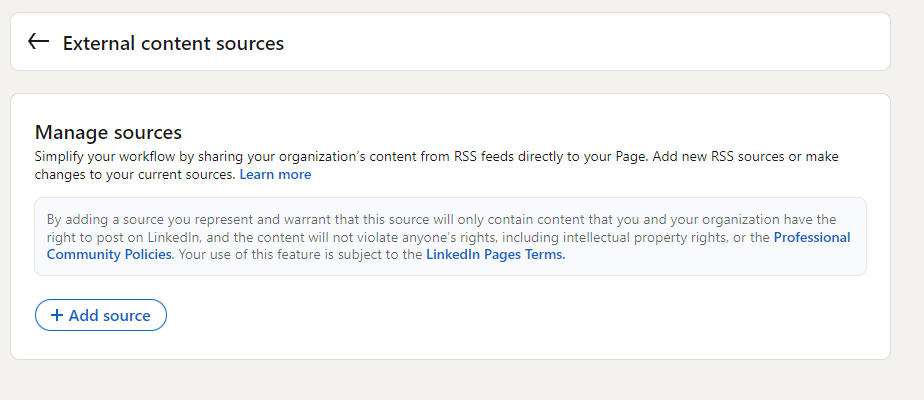
Then click on the +Add source button in the Manage sources area.
You will see that the content must abide by LinkedIn’s Professional Community Policies – Be safe, Be trustworthy, Be professional.
The use of this feature is also subject to LinkedIn Pages Terms. It’s interesting to read the terms surrounding the content you post and/or share.
Next set up the source and add the RSS details. All three items are required as shown in the image below. In the Select category area, there are the following options: Company blog, Youtube, Podcast or Other.

How to Find an RSS Feed – Using LinkedIn
Click on the Find RSS button in the image shown and enter the website of the RSS feed you require. Enter the website blog or news URL and LinkedIn will load results. Click on the +Add button to add the RSS feed.

How to Find an RSS Feed – Using Links
To find a website’s RSS information, start by checking the homepage or the blog section, as many websites provide a direct link to their RSS feed there. Look for common RSS icons, often depicted as a small orange square with white radio waves, or links labeled “RSS Feed,” “Subscribe,” or similar.
How to Find an RSS Feed – Manually
If these are not visible, you can manually search for the RSS feed by appending “/rss” or “/feed” to the website’s URL, such as “www.example.com/rss.”
How to Find an RSS Feed – View Page Source
Alternatively, view the page source by right-clicking on the webpage and selecting “View Page Source,” then use the search function (Ctrl+F or Command+F) to look for “rss” or “feed.” This should help you locate the RSS feed URL, which you can then use to add the feed to your LinkedIn Page.
Authenticating an RSS Feed
LinkedIn will work to establish a connection between your LinkedIn Company Page and the RSS feed. You can see the screen below which took a few minutes to connect. *Time to make a brew or do some LinkedIn activities in the interlude*

Next, you will then see a green tick by the RSS feed once the connection is complete.

This is the good bit! Conveniently, Page/Content Managers will be notified when a recent blog post is available to share on a LinkedIn Page. Note this is the LinkedIn app view.

Click on the notification and LinkedIn will set up the blog post into a new post for the relevant LinkedIn Company Page. You should add an introduction to the blog post or an insight that your followers will find interesting, useful, or entertaining. Read some guidance on how to introduce an RSS item below.
The Options for Sharing your Post:
- To publish the post immediately
- To schedule the post for a chosen time, click on the grey clock icon to the left of the Post button and set the date and time accordingly.
Note that this is the LinkedIn app view but the same options are available on Desktop.

Ways to Curate an RSS News Feed Item in a LinkedIn Post
Here are some suggestions for LinkedIn Page managers or marketers to introduce their blog post, article, video or podcast:
- Start with an engaging question to pique the interest of the reader
- Highlight an interesting statistic from the news item
- Engage the reader with an instruction to imagine, think about, remember or feel
- Extract 2-3 points from the news item to grab the reader’s attention
- Explain who the article is useful for and why they need to read/watch/listen
- Use elements of FOMO or consequences of missing the information or episode
How to Remove an RSS Feed
Go to your LinkedIn Page Settings area then choose Manage content sharing. Click on the trashcan icon to the right of the RSS feed you wish to remove then click the Delete button.
Benefits of Adding RSS Feeds to a LinkedIn Company Page
Consistent Content Updates
Automatically share the latest news and updates from trusted sources, keeping your LinkedIn audience engaged with fresh content without the need for manual posting. It’s like having your own A.I. assistant without any software payments or fuss.
Enhanced Credibility
By curating and sharing relevant industry news, you position your company as a knowledgeable and reliable resource in your field.
Increased Engagement
Regularly updated content can boost interaction on your LinkedIn Page, encouraging more likes, comments, and re-posts from your followers.
Time Efficiency
Streamline your content strategy by automating the sharing process, freeing up time to focus on other important aspects of your business.
Improved SEO
Consistent content updates can enhance your page’s visibility in LinkedIn’s search results, potentially attracting more followers and increasing brand awareness.
Audience Retention
Keep your audience informed and engaged with the latest trends and developments, reducing the likelihood of follower drop-off due to stagnant content.
Diverse Content Mix
Integrating various RSS feeds allows you to share a wide range of content types, from articles and blogs to podcasts and videos, catering to different audience preferences.
Conclusion
I hope you find this how-to blog post helpful for setting up RSS Feeds for your LinkedIn Company Page.
This is a useful feature for Company Page managers and marketers and for business owners who would like to grow their LinkedIn Page or save time by automating some of the content processes.
What RSS feeds will you be adding to your LinkedIn Company Page? You could start by adding your own company website blog and Youtube or Podcast channel if that suits your strategy.
If you would like to find out more about my LinkedIn Company Page services please get in touch by emailing hello@jessicajonesonline.com or view packages here